


[Intro] An Unvisited Blog is Just a Diary
We have built the house (server), done the interior (theme), and brought in appliances (plugins). Now, all we have to do is make a warm cup of coffee and write.
However, speaking coldly, this blog is currently on a deserted island. We have an address (domain), but it is not registered on the map (search engine). No matter how good the technical articles I write are, no one can see them if Google doesn’t know about them.
In this post, we will cover how to announce our location to ‘Google’, the ruler of global search (Google Search Console), and how to write the first technical post using ‘Markdown’, the tool most familiar to developers.
[Concept Note] Invitation and Map
1. Google Search Console It is a place to submit a ‘business registration certificate’ to Google stating that you have opened a blog. It is a free tool that analyzes whether my site appears well in Google search results and what keywords people use to enter.
2. Sitemap It is the ‘floor plan’ of our house. When a guest called Google Bot (Crawler) comes to our house, it acts as a map telling where the main room (posts) is and where the bathroom (pages) is. We will submit the map created by the ‘Yoast SEO’ plugin installed last time to Google.
[Action 1] Registering Business with Google (Search Console Registration)
The most certain way is ownership verification through DNS records. Since we are ‘server owners’ who already know how to handle Route 53, we will use this method.
1. Add Property Access Google Search Console and log in with your Google ID. Select the ‘Domain’ method in ‘Select property type’ and enter my domain (e.g., ys-note.com).
2. Copy Verification Code Google gives a long alien-like string (google-site-verification=...). Copy this.
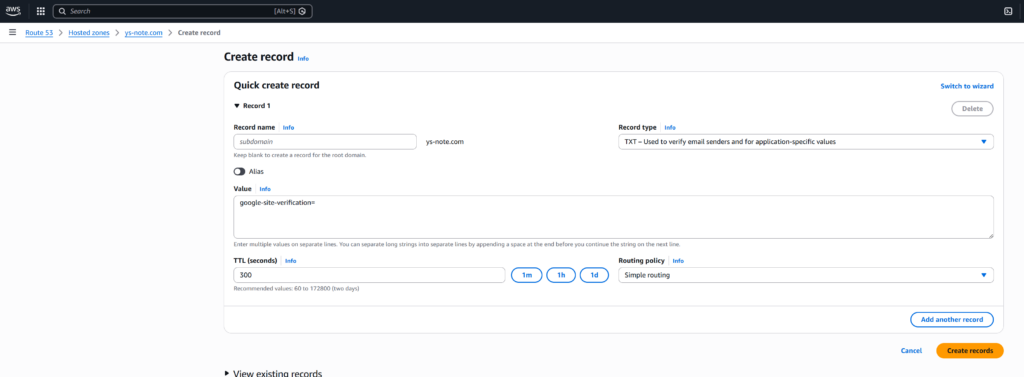
3. Add TXT Record to Route 53 Go to Route 53 in the AWS Console.
- Click my hosted zone -> ‘Create record’
- Record type: Select
TXT - Value: Paste the Google verification code copied earlier
- Click ‘Create’
4. Verify Ownership Return to Search Console and press the ‘Verify’ button. If a green window appears with the message “Ownership verified”, it is a success.
[Action 2] Submitting House Blueprint (Sitemap)
Since we registered, it is time to hand over the map.
1. Check Sitemap Address Go to Yoast SEO -> Settings in the WordPress admin screen. You can find the XML Sitemaps feature at the bottom or in the features tab. Usually, the address is mydomain/sitemap_index.xml.
2. Submit to Search Console Click ‘Sitemaps’ in the Google Search Console menu. Enter sitemap_index.xml in the Add a new sitemap field and press ‘Submit’. If the status appears as ‘Success’, the Google Bot will periodically visit my blog and scrape posts from now on.
[Action 3] Writing with Developer’s Language, Markdown
Now the preparation for welcoming guests is over. Let’s write the first post. The default editor of WordPress (Gutenberg) supports Markdown.
1. Write New Post Click Posts -> Add New in the admin screen.
2. Use Markdown Syntax Write the title and try entering Markdown syntax directly in the body.
- Typing
##and pressing spacebar automatically turns it into an H2 heading. - Typing
-and pressing spacebar becomes a list. - Typing
```(3 backticks) creates a code block where the Syntax Highlighter we installed last time will work.
3. Utilize Code Block Paste the code inside the created gray box. If you select the language (JavaScript, Python, etc.) in the right settings panel, highlighting is applied beautifully.
4. Check Yoast SEO Traffic Light There is a Yoast SEO panel at the bottom or right of the post. It tells you how friendly this post is to search engines with red/orange/green traffic lights. Let’s try to get at least ‘orange’.
[Troubleshooting] Why Doesn’t Search Happen Immediately?
Q. Ownership verification continues to fail in Search Console. Even if you add a TXT record to Route 53, it takes time to spread to name servers worldwide. Let’s wait for about 5 minutes to 1 hour and press the ‘Verify’ button again.
Q. I wrote a post, but it doesn’t appear on Google. Just because you sent an invitation doesn’t mean the guest comes in 1 second. New blogs may take days to weeks to be crawled and indexed. Entering the post address in Search Console and manually pressing ‘Request Indexing’ can make it a little faster.
[Conclusion] The Beginning of a Technical Blog
Now our blog is connected to the world. Google has learned of your blog’s existence, and you can publish posts containing code in the most comfortable way for developers.
We have run breathlessly from AWS Lightsail server construction to domain, SSL, essential settings, and Google integration through 6 parts. With this, the big project of ‘building my house’ is finished.
From now on, it is a battle of consistency. I hope you pile up the errors you experienced, the code you worried about, and the moments you grew in this space. Those records will gather and lead you to a wider world someday.