I Fired Off an ALTER TABLE on the Production DB
Friday, 4 p.m. At a stakeholder’s request, I had to add one column to the project table. A simple job.
ALTER TABLE project ADD COLUMN priority VARCHAR(20);
I tested it on the dev server, connected to the production server, and ran the same SQL. No problems. I deployed and went home.
Monday morning, the phone rang.
“That thing deployed over the weekend works on the dev server, but production is throwing errors.”
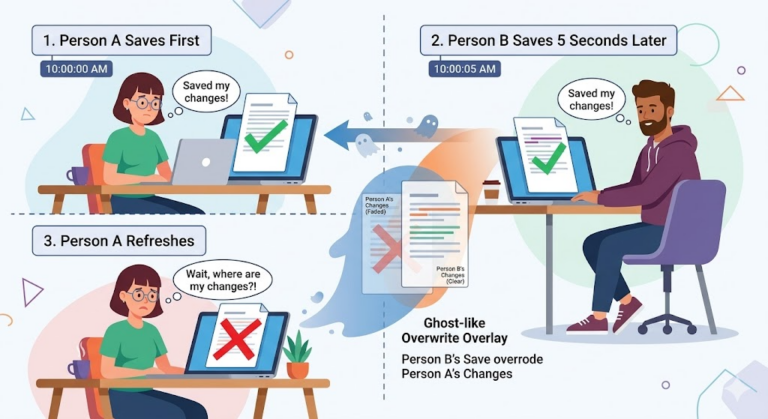
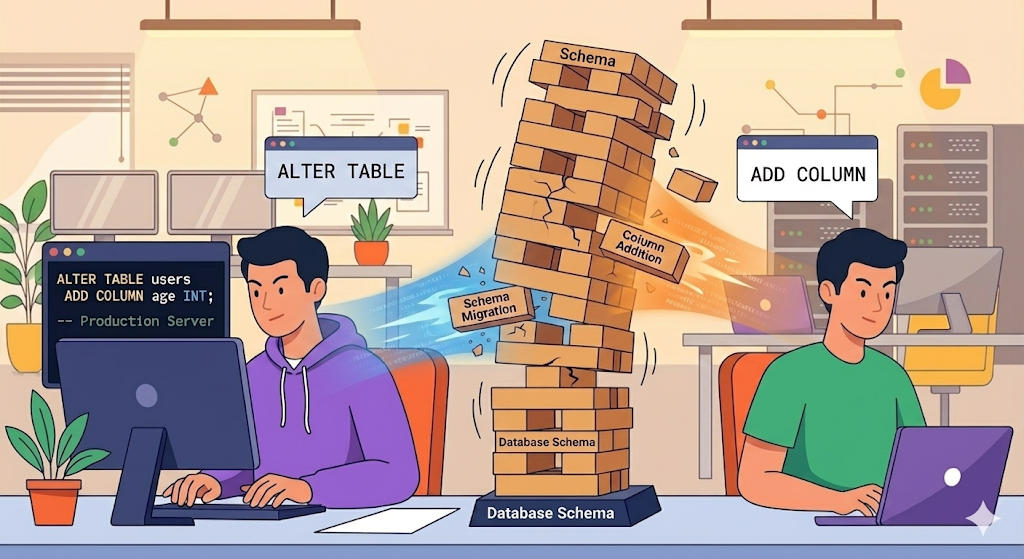
When I looked into it, another developer had run SQL directly against the production DB on Friday evening, adding a different column to the same table. The order got tangled, and the schema the application expected no longer matched the actual DB schema. There was no record of which SQL had run when, so I had to compare the dev and production schemas by hand, one by one.
‘Never manage DB schema changes by hand.’ Learning that lesson cost me half a day.
What Is a Database Migration, and Why Is Manual SQL Dangerous?
A database migration means managing the change history of your database schema as code. Just as Git tracks the change history of your source code, a DB migration tool tracks the change history of your table structures.
Here’s why manual SQL is dangerous.
| Managing SQL by hand | Migration tool |
|---|---|
| No idea who ran which SQL, or when | Every change is recorded in a file |
| Dev and production schemas can drift apart | Applied to every environment in the same order |
| The same SQL can get run twice | Anything already applied is skipped |
| Mistakes are hard to undo | The history makes problems traceable |
| A new team member can’t build the DB from scratch | Run the migration files and it’s reproduced |
The key idea: ‘turn schema changes into code and version them.’
Getting Started with Flyway
Flyway is the most widely used DB migration tool in the Java/Spring ecosystem. It’s based on SQL files, so there’s no new syntax to learn. You just write SQL.
Adding the Dependency
// build.gradle
implementation 'org.flywaydb:flyway-core'
In Spring Boot, adding this one dependency is all it takes: migrations run automatically when the application starts.
Configuration
# application.yml
spring:
  flyway:
    enabled: true
    locations: classpath:db/migration
    baseline-on-migrate: true    # when applying Flyway to an existing DB for the first time
baseline-on-migrate: true is needed when you first introduce Flyway to a production DB that already has tables. It treats the existing schema as “version 1” and tracks changes from there on.
File Naming Conventions
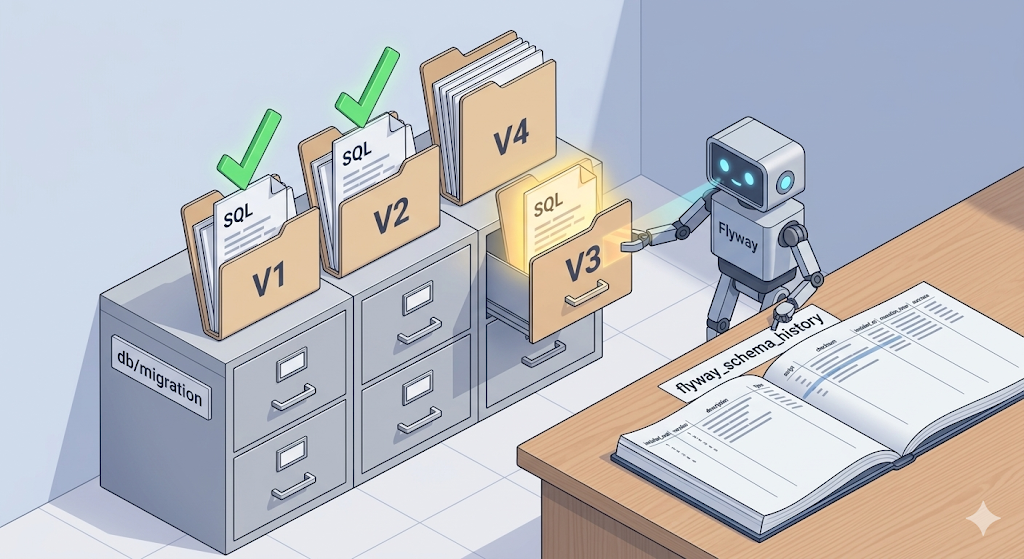
Migration files go in the src/main/resources/db/migration/ folder, and their names follow a convention.
V1__create_project_table.sql
V2__add_priority_column.sql
V3__create_member_table.sql
V3.1__add_member_email_index.sql
| Part | Meaning | Example |
|---|---|---|
| V | Versioned migration | V |
| 1, 2, 3 | Version number (run in order) | V2 |
| __ (two underscores) | Separator | V2__ |
| Description | What this migration does | add_priority_column |
| .sql | SQL file | .sql |
Flyway runs migrations in version-number order and skips versions that have already run. The execution history is recorded in the flyway_schema_history table.
Your First Migration
-- V1__create_project_table.sql
CREATE TABLE project (
    id BIGSERIAL PRIMARY KEY,
    name VARCHAR(200) NOT NULL,
    status VARCHAR(50) NOT NULL DEFAULT 'ACTIVE',
    region VARCHAR(100),
    category VARCHAR(100),
    manager_name VARCHAR(100),
    start_date DATE,
    end_date DATE,
    created_at TIMESTAMP DEFAULT CURRENT_TIMESTAMP
);
When you start the application, Flyway detects this file and runs it automatically. You can confirm it in the logs.
Flyway Community Edition
Successfully applied 1 migration to schema "public" (execution time 00:00.032s)
Real-World Patterns
Adding a Column
This is the most common migration, and the very operation that caused all the trouble in the intro.
-- V2__add_priority_to_project.sql
ALTER TABLE project ADD COLUMN priority VARCHAR(20) DEFAULT 'NORMAL';
Transforming Existing Data
After adding a column, you’ll often need to backfill existing data.
-- V3__populate_priority_from_category.sql
UPDATE project SET priority = 'HIGH' WHERE category = 'URGENT';
UPDATE project SET priority = 'NORMAL' WHERE priority IS NULL;
It’s best to keep schema changes and data transformations in separate files. Mix them in one file and it gets hard to trace where a problem came from.
Adding Indexes
-- V4__add_index_project_status.sql
CREATE INDEX idx_project_status ON project(status);
CREATE INDEX idx_project_region ON project(region);
Deployment and Migration Order
What matters in practice is ‘deployment order.’ If you deploy code that uses the new column first, it fails against a DB that doesn’t have the column yet.
Safe order:
- Run the migration (add the column) -> deploy the code (use the column)
- Or: add the column + set a default -> deploy the code -> backfill the data
Risky order:
- Deploy the code (use the column) -> run the migration (add the column) -> error!
With Spring Boot + Flyway, migrations run first when the application starts, so if you ship them in the same deployment, the order works out naturally. But with zero-downtime deployments (rolling deployments), there’s a moment when old code and the new schema coexist, so new columns must always have a default value or allow NULL.
More Important Than Rollback: Forward Fix
“Can I roll back a migration?”
This question comes up a lot, but here’s the reality: ‘DB migrations don’t roll back as easily as application code.’
With code, you revert to the previous version and you’re done. A database is different. If data has already gone into a column you added, dropping the column drops the data with it. If you renamed a table while another service was still accessing it by the old name, reverting doesn’t help: the errors have already happened.
That’s why, in practice, instead of preparing rollback scripts in advance, teams use a ‘Forward Fix’ strategy.
| Strategy | Description |
|---|---|
| Forward Fix | When something goes wrong, fix it with a new migration (V5 fixes V4’s mistake) |
| Backward compatibility | Design so old code and the new schema can coexist |
| Backups | Backing up the DB before a migration is a given |
| Small steps | Don’t make big changes all at once; split them into small steps |
-- If V4 set the wrong column type by mistake,
-- don't edit V4; add V5 instead

-- V5__fix_priority_column_type.sql
ALTER TABLE project ALTER COLUMN priority TYPE VARCHAR(50);
Flyway raises a checksum error if you modify a migration file that has already run. To fix a mistake, don’t edit the existing file; add a new version file instead.
Flyway vs Liquibase
Liquibase also comes up a lot as a DB migration tool. The core difference between the two is simple.
| Flyway | Liquibase | |
|---|---|---|
| Migration format | SQL files | XML/YAML/JSON/SQL |
| Learning curve | Low (you only need SQL) | High (its own syntax) |
| DB independence | SQL is DB-specific | DB-independent if you use its own format |
| Rollback | Manual (Forward Fix) | Partial support for automatic rollback |
| Best fit | Teams comfortable with SQL, single DB | Teams that must support multiple DBs |
If your team uses only PostgreSQL and is comfortable with SQL, Flyway is more intuitive. The simplicity of “add one SQL file and you’re done” is Flyway’s biggest strength.
Practical Advice
1. Introducing Flyway to an Existing Project
Applying Flyway for the first time to a DB that’s already in production is the trickiest part. Treat the current schema as V1 and set baseline-on-migrate: true.
-- V1__baseline.sql
-- Records the current production schema as-is (for the record, not executed)
-- Extract the current schema with pg_dump --schema-only and paste it here
2. Team Rules
| Rule | Why |
|---|---|
| Never modify a migration file once it’s committed | Prevents checksum errors |
| Use descriptive file names | V7__add_index_project_status.sql, not V7__add_index.sql |
| Keep DDL and DML in separate files | Makes problems easier to trace |
| No manual SQL on the production DB | Prevents drift from the schema Flyway manages |
| Back up before migrating | The most basic of basics |
3. Useful Settings for Local Development
# application-local.yml
spring:
  flyway:
    clean-disabled: false   # allow clean only locally (never in production)
  jpa:
    hibernate:
      ddl-auto: validate    # Flyway manages the schema; Hibernate only validates
ddl-auto: validate matters. Hibernate won’t create or modify the schema on its own; it only checks that your entities match the schema Flyway built. If anything doesn’t match, you get an error at startup, so you find out right away.
Wrapping Up: Schema Changes Are Code Too
Plenty of teams still manage code changes with Git but manage DB changes by hand. With Flyway, you can review, track, and reproduce DB changes just like code.
To sum up:
- Don’t run manual SQL directly on the production DB.
- Make every schema change a migration file.
- Don’t edit files that have already run; fix things with a new file (Forward Fix).
- With Flyway + Spring Boot, you can get started by adding a single dependency.
In the next post, I’ll cover environment separation and Profiles. When something works on the dev server but not in production, the cause is very often a difference in configuration files. We’ll look at how to manage application-local.yml, application-dev.yml, and application-prod.yml.