“The Server’s Down”: The Worst Way to Find Out Is a Customer’s Call
After speeding things up with Redis and getting requests in order with Nginx, the service was peaceful for a while. I got drunk on that sense of stability. “Things are pretty stable now,” I told myself, and after work I went to sleep without a worry about the server.
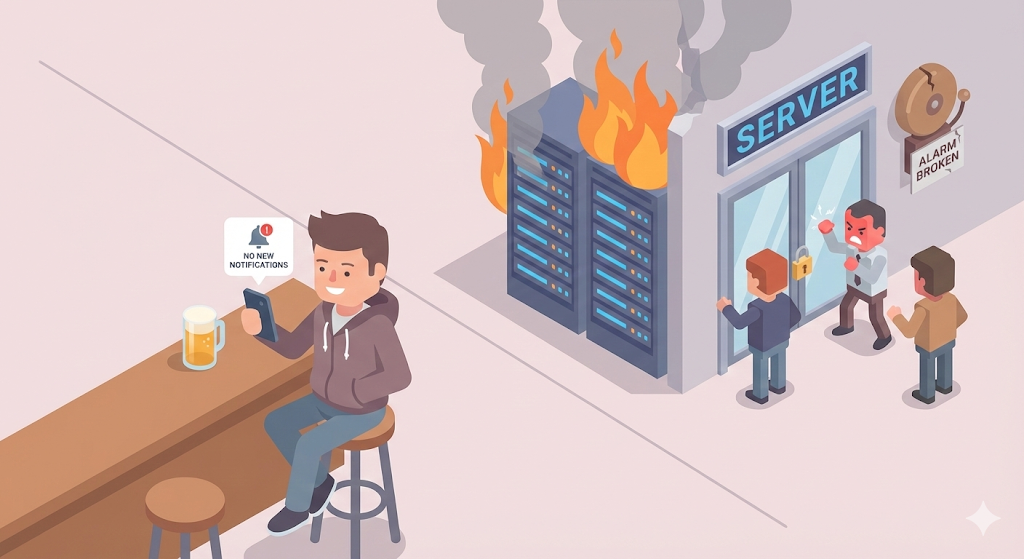
Then one Friday night, I was having a beer after work when my phone rang.
“Hey, nobody can get into the service. I don’t even know how long it’s been down, and customers are complaining to us right now.”
My heart sank. I scrambled to open my laptop and connect to the server, and the Spring Boot process was dead. The server had quietly gone down after running out of memory (OOM). Quietly. Without a single alert.
When I dug through the logs, I found the server had already died 3 hours earlier. For 3 hours, customers were staring at a blank screen, and I was drinking beer.
“The server died, and nobody told me.”
For a solo developer, this is the scariest problem of all. Even when the server blows up, you have no way of knowing. You don’t find out until a customer calls. That night, once I’d finished bringing the server back, I made myself a promise.
‘Let’s give the service a health checkup system.’
Step 1: Logs, the Server’s Black Box
To know what happened on a server, you need a record. That’s what a ‘log’ is.
Just as a car has a dashcam, a server has logs. If you don’t keep proper logs, you can’t even do a postmortem on why the server died.
Basic Spring Boot Logging Setup
By default, Spring Boot prints logs to the console. But console output is gone once the server restarts. You need to keep logs in a file.
# application.yml
logging:
  file:
    name: /var/log/myapp/application.log
  level:
    root: INFO
    com.mycompany: DEBUG
  logback:
    rollingpolicy:
      max-file-size: 10MB
      max-history: 30
| Setting | Meaning |
|---|---|
| file.name | Path where logs are saved as a file |
| level.root: INFO | By default, log only INFO and above |
| level.com.mycompany: DEBUG | Log my own code down to DEBUG |
| max-file-size: 10MB | Start a new file once a file passes 10MB |
| max-history: 30 | Keep only 30 days’ worth; older files are deleted automatically |
Log levels have a hierarchy: DEBUG → INFO → WARN → ERROR. On a production server, it’s common to keep only INFO and above, and temporarily turn on DEBUG when something goes wrong.
What Should You Log?
Back when I was a beginner, I was leaving logs like System.out.println("got here 1"). In real-world work, this is how you should log.
// Bad example
System.out.println("Error occurred");

// Good example
log.error("[Payment failed] orderId={}, userId={}, reason={}",
    orderId, userId, e.getMessage(), e);
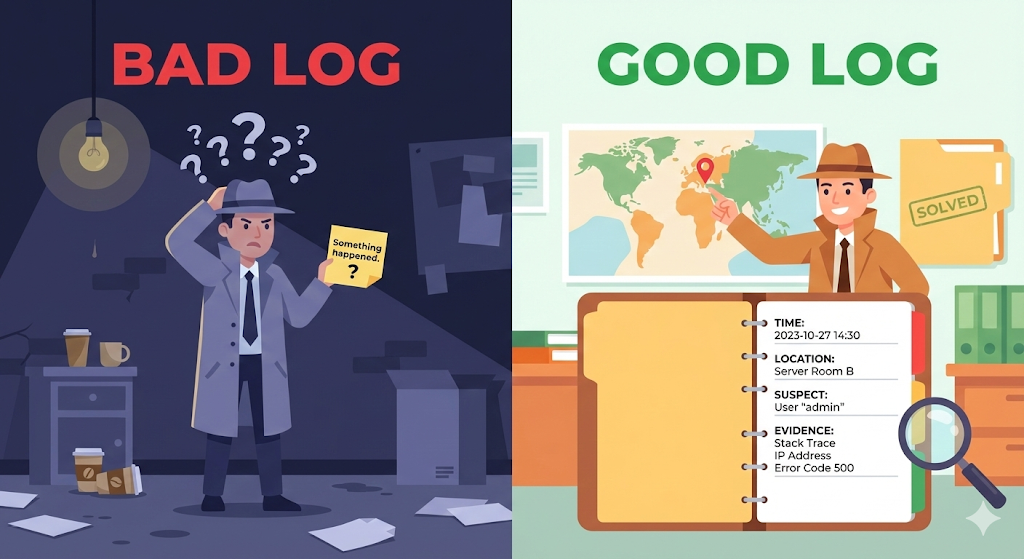
A good log tells you:
- ‘When’ it happened (timestamp, which the framework stamps for you automatically)
- ‘Where’ it happened (class name, method name)
- ‘What’ happened (error message, stack trace)
- ‘What related data’ was involved (order number, user ID, etc.)
When an alert wakes you at 3 a.m. and you open the logs, if all they say is “Error occurred,” there’s nothing you can do. A log is an investigation report you send to your future self.
Step 2: Nginx Logs Show Who Came In and What Failed
Spring Boot logs alone don’t show you the whole picture. To know which URLs users hit, how long responses took, and how many 404 errors are happening, you need to manage the Nginx logs too.
By default, Nginx keeps two kinds of logs.
| Log | Purpose | Path |
|---|---|---|
| access.log | Every access record (who, when, and where to) | /var/log/nginx/access.log |
| error.log | Error records (502, 504, etc.) | /var/log/nginx/error.log |
# Watch the access log in real time
tail -f /var/log/nginx/access.log

# Example output:
# 192.168.1.1 - [25/Feb/2025:10:30:01] "GET /api/projects" 200 0.003s
# 192.168.1.2 - [25/Feb/2025:10:30:05] "GET /api/users" 502 0.000s
What if you see a 502 response in the log above? As we learned in the previous post, a 502 means Nginx is alive but the Spring Boot app behind it is dead. The Nginx log points you to where the problem started, and the Spring Boot log is where you find the cause.
Step 3: Health Monitoring That Warns Me Before the Server Dies
Logs are a record of ‘what has already happened.’ But what you really need is ‘a warning before it dies.’
Health Check: Hey Server, Are You Alive?
Spring Boot has a built-in feature for checking the server’s health. It’s a library called ‘Spring Boot Actuator’.
# application.yml
management:
  endpoints:
    web:
      exposure:
        include: health, info, metrics
  endpoint:
    health:
      show-details: always
Add just this configuration, and you get a /actuator/health endpoint.
$ curl http://localhost:8080/actuator/health
{
  "status": "UP",
  "components": {
    "db": { "status": "UP" },
    "redis": { "status": "UP" },
    "diskSpace": {
      "status": "UP",
      "details": { "free": "15GB" }
    }
  }
}
You can see the DB connection, the Redis connection, and even disk space at a glance. If the DB connection drops, it shows “status”: “DOWN”.
A Simple Alert System: Shell Script + cron
Even without a fancy monitoring tool, you can do basic monitoring with nothing but a shell script and cron.
#!/bin/bash
# /home/user/health_check.sh

HEALTH_URL="http://localhost:8080/actuator/health"
WEBHOOK_URL="https://hooks.slack.com/services/YOUR/WEBHOOK/URL"

STATUS=$(curl -s -o /dev/null -w "%{http_code}" $HEALTH_URL)

if [ "$STATUS" != "200" ]; then
    # If the server doesn't respond, send an alert to Slack
    curl -X POST -H 'Content-type: application/json' \
        --data '{"text":"🚨 Server not responding! HTTP status: '$STATUS'"}' \
        $WEBHOOK_URL
fi
# Register it with cron (runs every minute)
$ crontab -e
* * * * * /home/user/health_check.sh
| Component | Role |
|---|---|
| curl | Sends a health check request to the server |
| http_code | Checks the response code (200 means healthy) |
| Slack Webhook | Sends a messenger alert when something looks wrong |
| cron | Runs it automatically every minute |
If this script had been running, a Slack alert would have hit my phone within 1 minute of the server dying that Friday night. Not 3 hours. 1 minute.

Going a Step Further: Dedicated Monitoring Tools
The shell script above can only tell you whether ‘the server is alive or dead.’ If you need more fine-grained monitoring, you can look at dedicated tools.
| Tool | Features | Best for |
|---|---|---|
| Prometheus + Grafana | Collects metrics like CPU, memory, and response time and visualizes them on dashboards | Teams running their own servers |
| Uptime Kuma | Lightweight, intuitive server status monitoring (easy to install with Docker) | Solo developers / small teams |
| Sentry | Specializes in application error tracking. Shows you exactly where in the code an error occurred | Error-tracking focus |
| AWS CloudWatch | AWS infrastructure monitoring, integrated automatically | When you’re on AWS |
At the solo-developer stage, a shell script + Slack alerts is plenty. Once the service grows, I recommend the Prometheus + Grafana combo. Uptime Kuma is very easy to install, so it’s a great way to get started quickly.
Practical Advice: Core Principles of Logging and Monitoring
1. Logs Must Be ‘Searchable’
If your log file is one 1GB lump, just grepping through it takes forever. Split files by date (rolling) and set them to be deleted automatically after a certain period. That’s exactly what the max-file-size and max-history settings above are for.
2. Never Put Sensitive Information in Logs
// A log you must never write
log.info("Login attempt: id={}, password={}", userId, password);

// The right way to log
log.info("Login attempt: id={}", userId);
If sensitive information like passwords, resident registration numbers (Korea’s national ID numbers), or card numbers ends up in your logs, that’s a violation of the Personal Information Protection Act (Korea’s data privacy law).
3. Watch Out for Alert Fatigue
Put an alert on every WARNING, and hundreds of alerts pour in every day. Eventually you start ignoring even the truly important ones. It’s the boy who cried wolf all over again.
Only set alerts for ‘things that need action right now’: server down, DB connection lost, disk over 90%. Send alerts for just those, and checking everything else on a dashboard is enough.
Wrapping Up: ‘Operations’ Matter as Much as Feature Development
My service now has three layers of safety net.
- Redis: speeds things up by cutting unnecessary DB calls
- Nginx: organizes requests and hides the internal structure from the outside world
- Logs/monitoring: tells me within 1 minute when something goes wrong
At first, I thought ‘building features’ was a developer’s only job. But the more real-world experience I got, the more I realized: keeping what you’ve built running reliably is harder, and more important, than building it.
A service isn’t finished once it’s deployed. It has to run 24 hours a day, hold up as users grow, and let you respond immediately when something goes wrong. What makes that ‘immediately’ possible is logging and monitoring.
Building a feature is the ‘start’. Keeping it running reliably is ‘operations’. A developer needs to know how to do both.